Use from an AI app
Find a published Bot, send it a task and inspect its result through MCP.
Use the same published Bot from an AI app connected to Stacklink. You do not install a new MCP server for each Bot.
The screenshots below use real MCP clients connected to Stacklink staging. In your project, use the Bot you published in the SDK walkthrough.
1. Connect your AI app
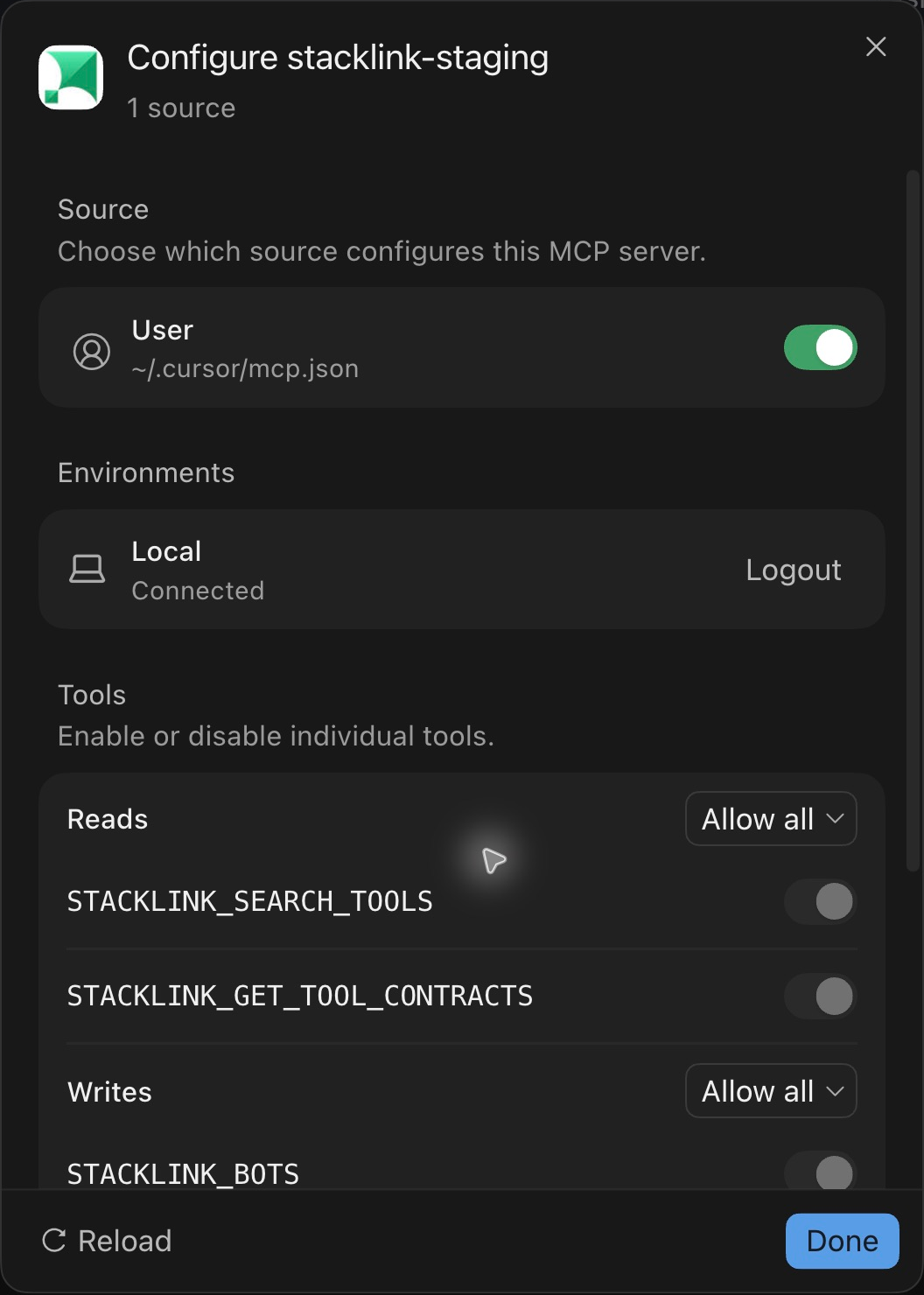
In Stacklink Overview → Connect an app, connect your client and authorize the project containing your Bot. Follow Connect your agent for the exact client setup.
Enable AI apps when publishing the Bot. The connection needs Bot read/run access; managing or publishing Bots needs additional management access.
For an OAuth connection, Stacklink's existing tools:read and tools:execute consent includes reading and running published Bots. This does not grant Bot management or bypass action approvals. SDK API keys use explicit bots:read and bots:run scopes instead.
2. Find the Bot
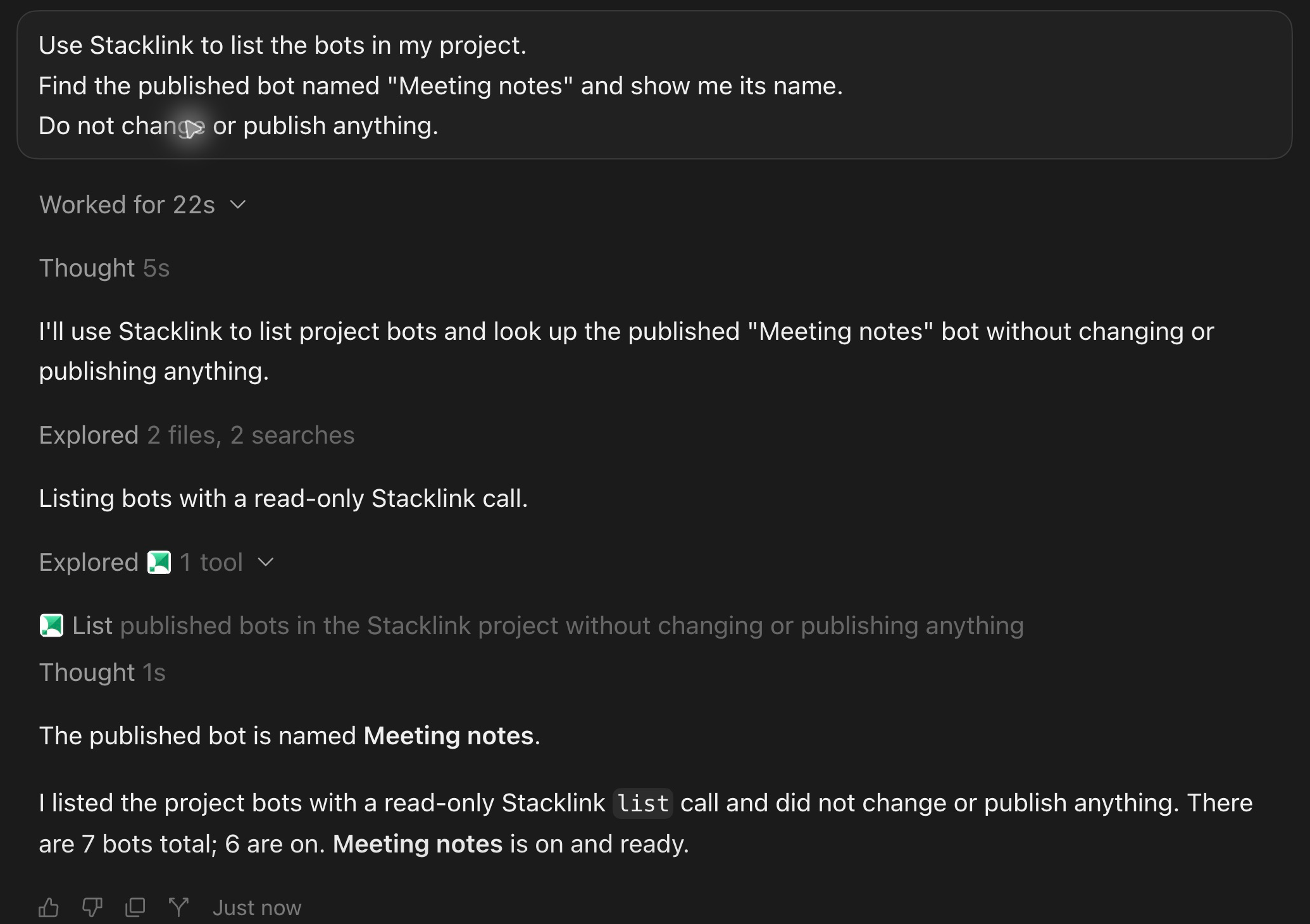
Paste this into your connected AI app:
Use Stacklink to list the bots in my project.
Find the published bot named "Meeting notes" and show me its name.
Do not change or publish anything.
For a workspace connection, the client first resolves the project through STACKLINK_LIST_PROJECTS. It uses the returned projectRef for STACKLINK_BOTS. A project-only connection already has its project bound.
3. Give it a task
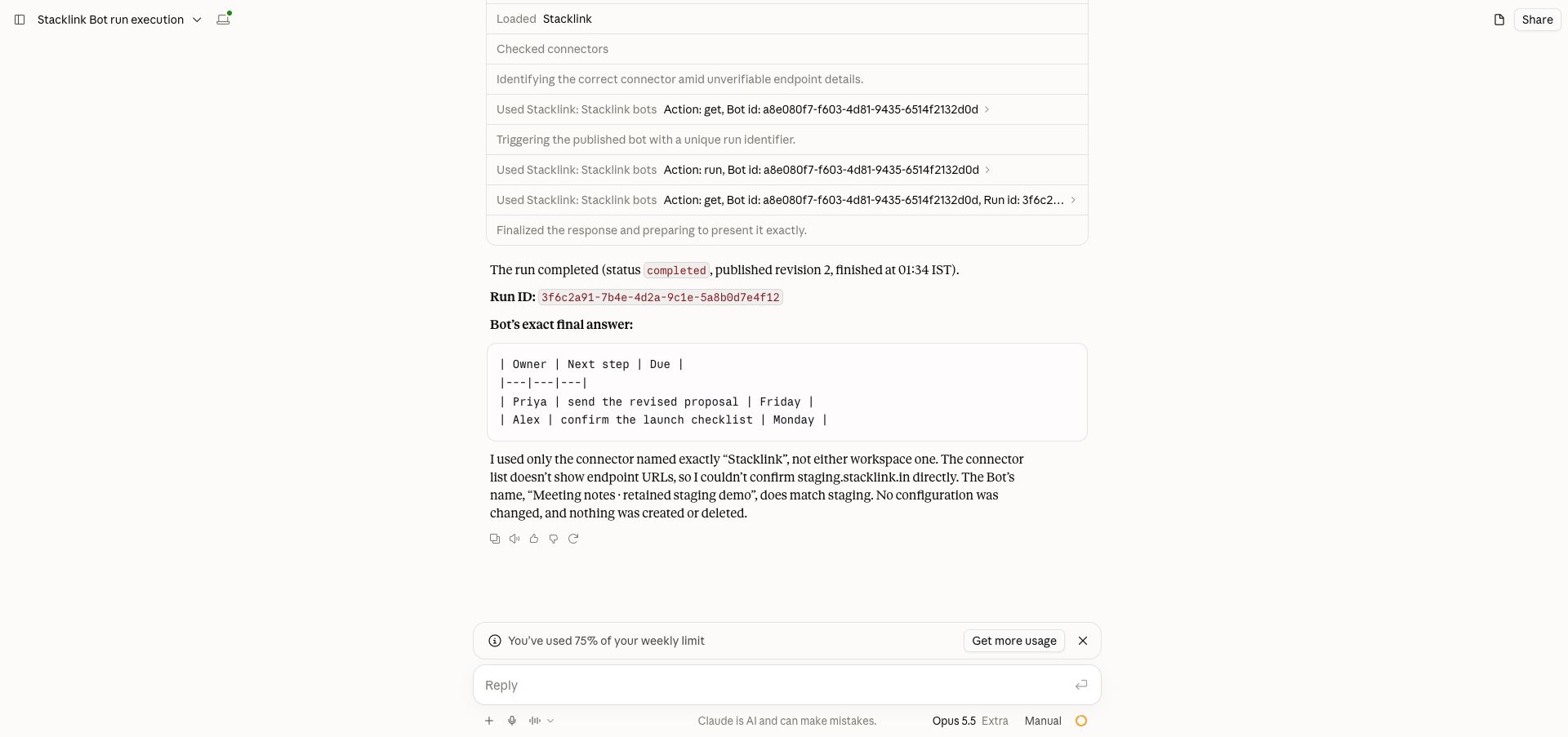
Run the "Meeting notes" Bot with these notes:
Priya will send the proposal on Friday. Alex will review it on Monday.

Wait for the Bot's result and show it to me.
The MCP result includes a run ID and conversation ID. The client reads that same run to observe completion. If it is waiting for a person, it should show the wait instead of starting another run.
4. See what happened
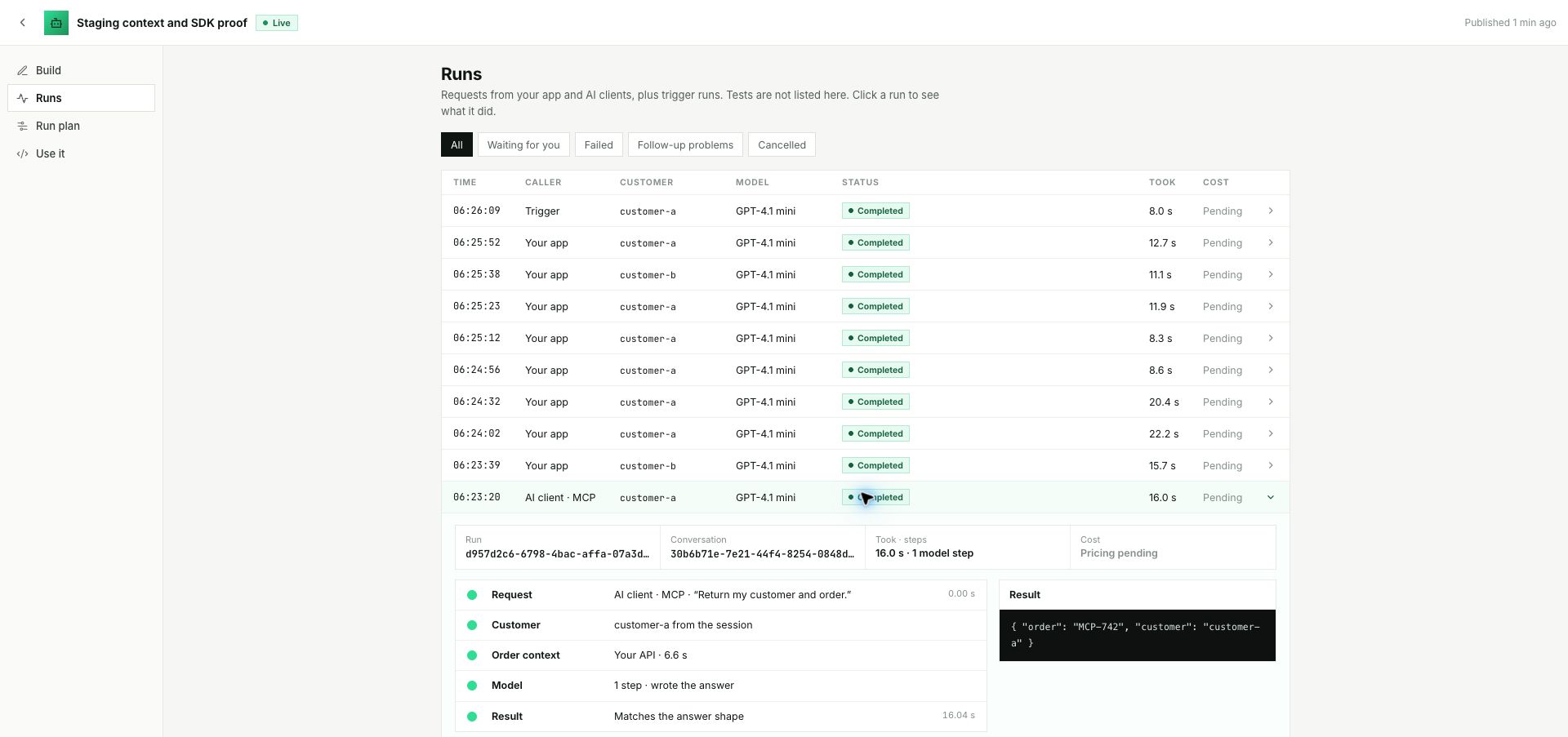
Open the Bot's Runs view in Stacklink. MCP calls appear alongside requests from your application.
Continue the conversation by asking the client to reuse the returned conversation ID:
Send "Make that one sentence" to the same Bot conversation.
Reuse the conversation ID from the previous result.
What the client calls
You normally write the task in plain language. These are the underlying tool arguments for a workspace connection; copy IDs from real results.
{
  "projectRef": "<returned-project-reference>",
  "action": "run",
  "botId": "<returned-bot-id>",
  "input": {
    "message": "Summarize the supplied notes into next steps."
  }
}{
"projectRef": "<same-project-reference>",
"action": "get",
"botId": "<same-bot-id>",
"runId": "<returned-run-id>"
}Both calls use STACKLINK_BOTS. Omit projectRef for a project-only connection. Customer identity comes from the authenticated connection, never from a customer ID typed into the prompt.
If an action needs approval
A Bot can pause while its action awaits approval. Follow the returned request in Stacklink; the Bot continues after an authorized decision.
Some eligible direct MCP actions can also show a native confirmation form. That depends on the client, connection settings and required approval authority. Connecting Stacklink or clicking the AI app's general tool permission does not automatically approve a Bot's business action.
Understand run and approval states →
When the Bot needs a connection
An enabled customer app can return a typed waiting_for_connection state. The same
STACKLINK_BOTS run lookup exposes its authorized connection action. A supporting client
can show a native connection prompt or card; other clients show the exact connection link.
The client chooses the presentation. No new task should be submitted after connecting.
In Claude desktop and Codex, the inline connection card keeps Authorize as its main action. It opens Stacklink's authorization page; opening the page does not grant access. The card checks the original run automatically and shows its progress and final result without a Refresh button. Closing the card stops observation, not the Bot. If observation fails, retrieve the original run again in the conversation; do not submit the task again.
If an existing Claude connection still shows the older card, use Customize → Connectors → Stacklink → Refresh tools list to load the current interactive tool metadata. This does not require changing its permissions.
Native prompts and cards depend on the client's negotiated support. On staging, Codex showed Authorize Granola, opened the correct connection page and automatically updated the original card when the run stopped. A separate Gmail run using an existing connection automatically reached its completed result. These checks did not authorize a new provider account. Cursor's latest check was blocked by its account usage limit before an MCP call and is deferred; it is not recorded as a pass.
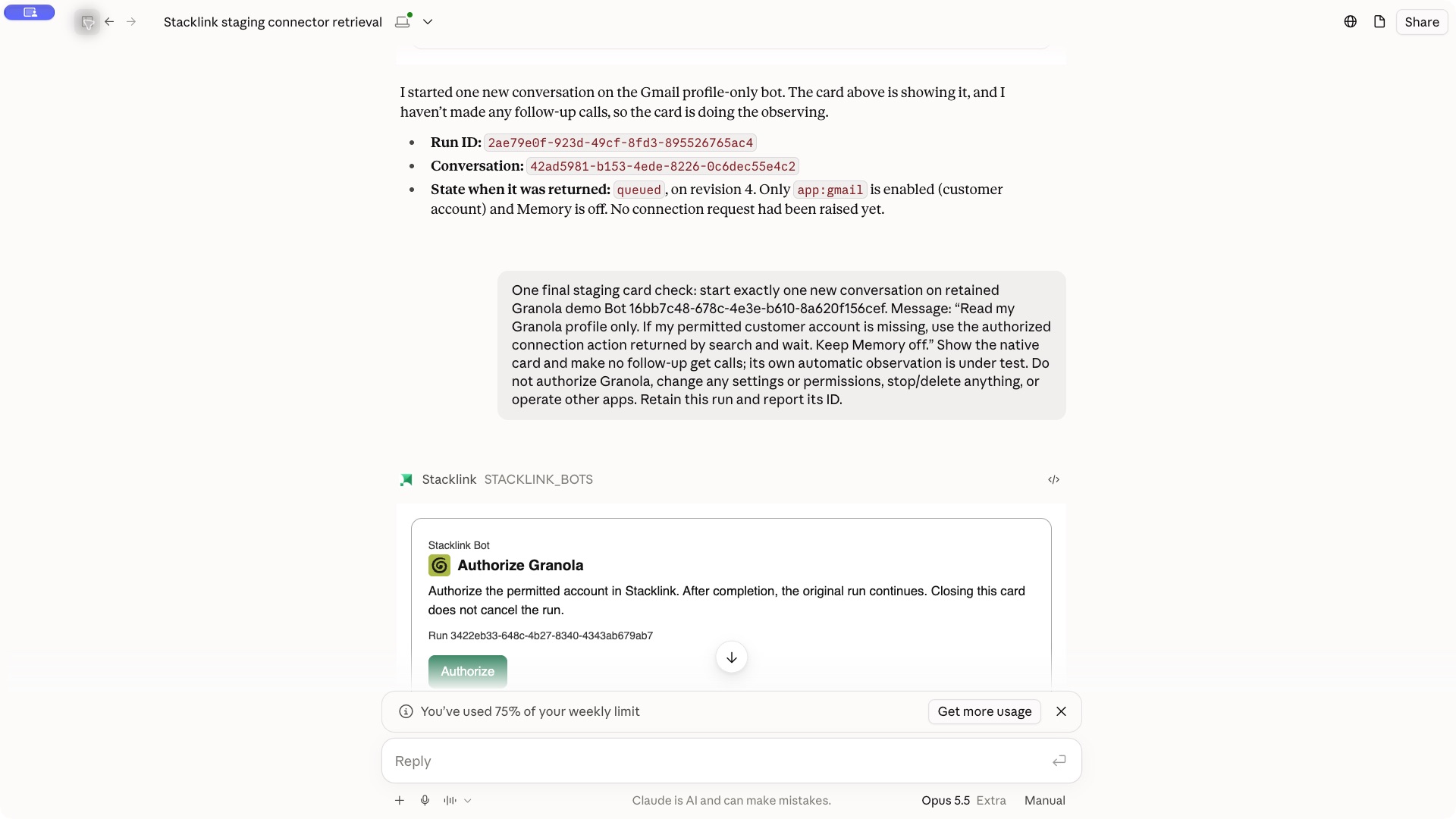
Read the same Bot run. If it is waiting for my account connection,
show its authorized connection action. After I finish, continue observing
that run. Do not create another run or enable additional capabilities.
Only the intended account owner can complete that connection. A disabled app, missing company account or forbidden action does not become an invitation for the customer to grant broader access. See connection states.
During a long conversation
Keep the returned conversation ID. Stacklink prepares context between model calls and keeps authorized history available for bounded retrieval where retention permits. The run’s events include context preparation progress; an AI client may show those events or summarize the current state when it reads the run. Compaction does not require Memory to be enabled.
The staging checks used actual Claude web MCP calls plus installed TypeScript and Python SDKs. They verified context preparation and access to retained conversation details with Memory Off. This is not a claim that every client renders an identical UI.
Send a file to the Bot
Attaching a file to your AI app does not automatically send its original bytes to Stacklink. The client can transfer the file itself, or show a Stacklink file picker. Both paths produce the same validated file IDs and use the same Bot runtime.
Send this PDF to my published Analysis Bot and summarize its findings.
Use the original file. If you cannot transfer it, show Stacklink's upload card.
When the client can transfer the file
The client calls STACKLINK_BOTS with action: "file_upload" and
input: { requestId, name, mediaType, sizeBytes, sha256? }. It uploads the original
bytes to the returned uploadUrl using requiredHeaders, then calls
file_finalize with { fileId }. The Bot run receives those IDs in
input.attachments.
Reuse the upload requestId after a lost response. file_get checks whether the
file was finalized; file_retry renews an unfinished upload. Reuse the run's
runId after a lost run response. A filename, extracted text or client-private
attachment reference is not an uploaded original.
When you choose the file
The client requests the existing tool's upload handoff:
{
  "action": "file_request",
  "botId": "<published-bot-id>",
  "input": {
    "requestId": "<new-uuid-reused-on-retry>",
    "task": {
      "message": "Summarize the selected PDF and cite its pages.",
      "runId": "<stable-run-uuid>"
    }
  }
}
Add projectRef for a workspace connection. Omit task to upload files without
starting an analysis. Include task.conversationId to continue an existing
conversation.
- Choose Choose files on the card or open its hosted Stacklink link.
- Select the original files. The page shows transfer progress and validation errors.
- Select Use these files after every selected file is uploaded, or explicitly remove a file you no longer want to send.
- Return to the AI app. A supporting card observes the submission and requests continuation of the saved task through the original MCP connection.
The host may ask permission for that tool call. If automatic continuation is
unavailable, ask the client to call file_request_get, then
file_request_continue, with input: { requestId: "<returned-handoff-id>" }.
Do not create another task. Opening the page alone never starts a Bot run.
The link expires after 30 minutes and permits only that upload selection. It does not grant Bot management, provider access or approval authority. Closing the page leaves the task unstarted; reopening the same unexpired link recovers its files. Files are limited to 25 MB each, five per message and 30 minutes per audio file, and must be enabled in the Bot's configuration. “Uploaded” means the bytes were validated; preparation for analysis can still be pending.
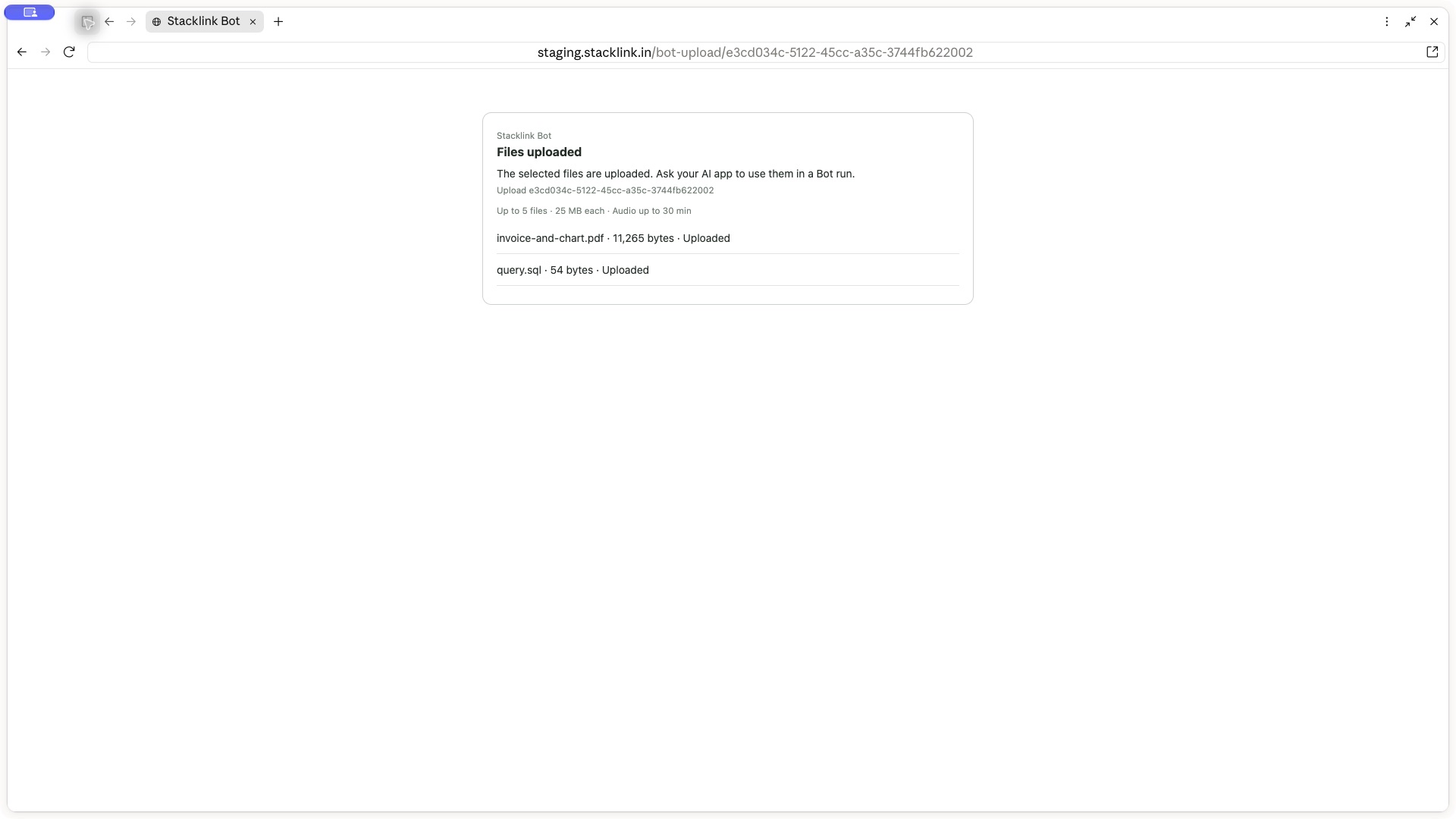
Client support and limits
The embedded card opens a hosted picker; it cannot read attachments from the AI app's parent conversation. You may need to select the file again. Clients without interactive views use the same hosted link or a supported URL prompt.
The earlier Claude desktop test reached MCP successfully, but its HTTPS tunnel to storage returned 403 before a storage response. The diagnostic reported “policy denial or upstream failure”; the exact cause was not established. That direct transfer remained incomplete and did not start a Bot run. The upload page provides a separate user-controlled transfer path without bypassing the client environment.
On staging, Claude desktop completed the hosted-picker path: the original PDF's size and digest matched, reloading preserved the selection, and Use these files led to one automatically observed Bot run and its completed answer. No Refresh or second task was needed. Direct transfer remains blocked in that Claude environment; the working picker does not change its network permissions.
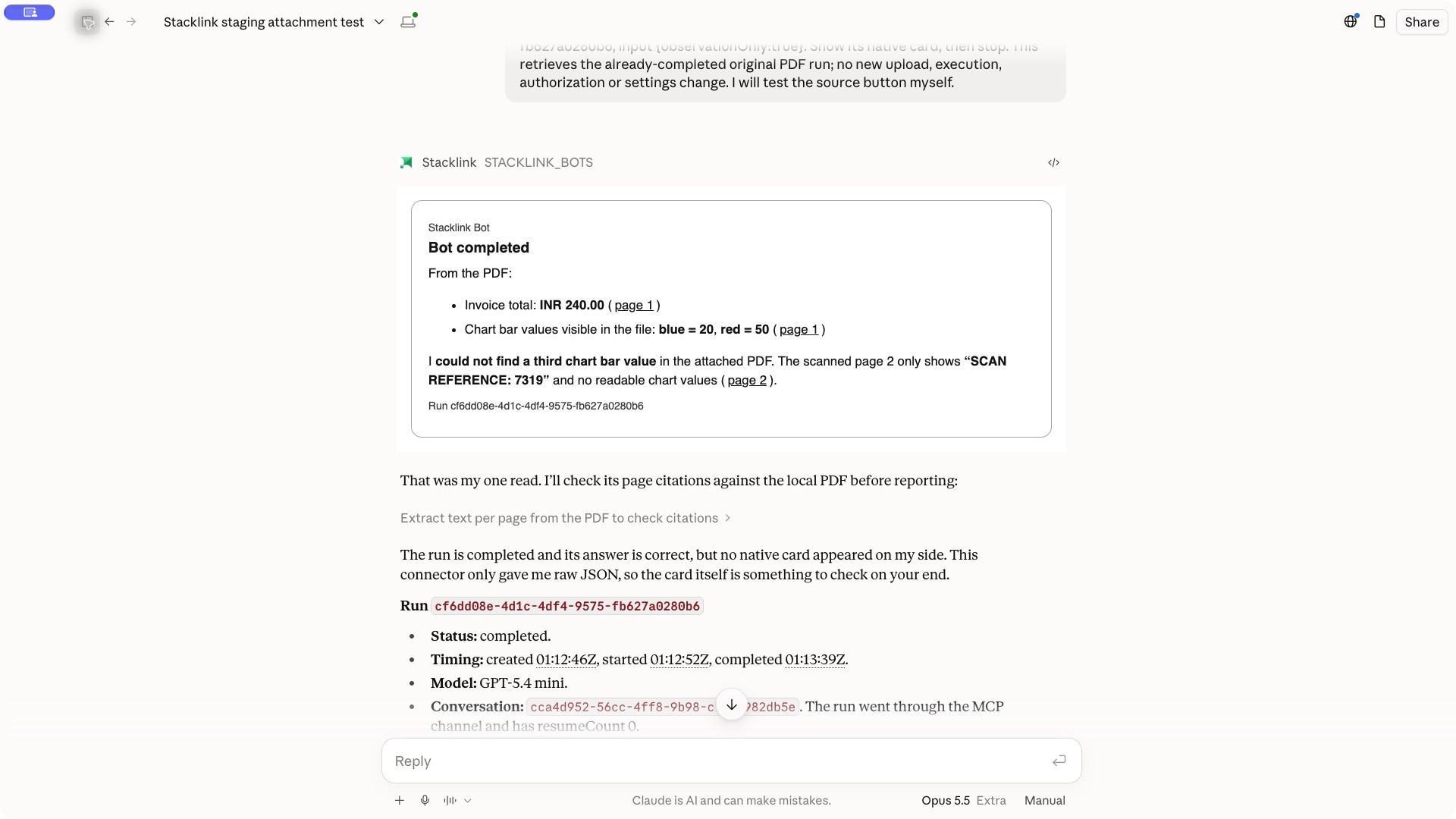
Source buttons retrieve a fresh authorized link to the original file. The page-two
button opened the correct PDF in Claude's browser, but that viewer initially
displayed page one despite receiving #page=2. Select the page in the PDF viewer
when the host does not honor the requested location.
Cursor currently stops at its Agent usage limit before calling MCP; its attachment journey remains unverified. Codex's installed connection did not expose Stacklink tools; reconnect consent is pending, so its direct and picker journeys are also unverified. Dashboard and installed TypeScript/Python attachment checks remain separate proof.