Add capabilities
Give your Bot the tools, context and output format its job needs.
Configure capabilities in the Bot builder, test them, then publish. Your SDK and MCP callers keep using the same Bot ID.
SDK support
Use SDK 0.3.13 or later for the typed timezone, connection-action and context-progress examples. Screenshots below show real staging sessions; production uses the same controls.
Set the Bot's timezone
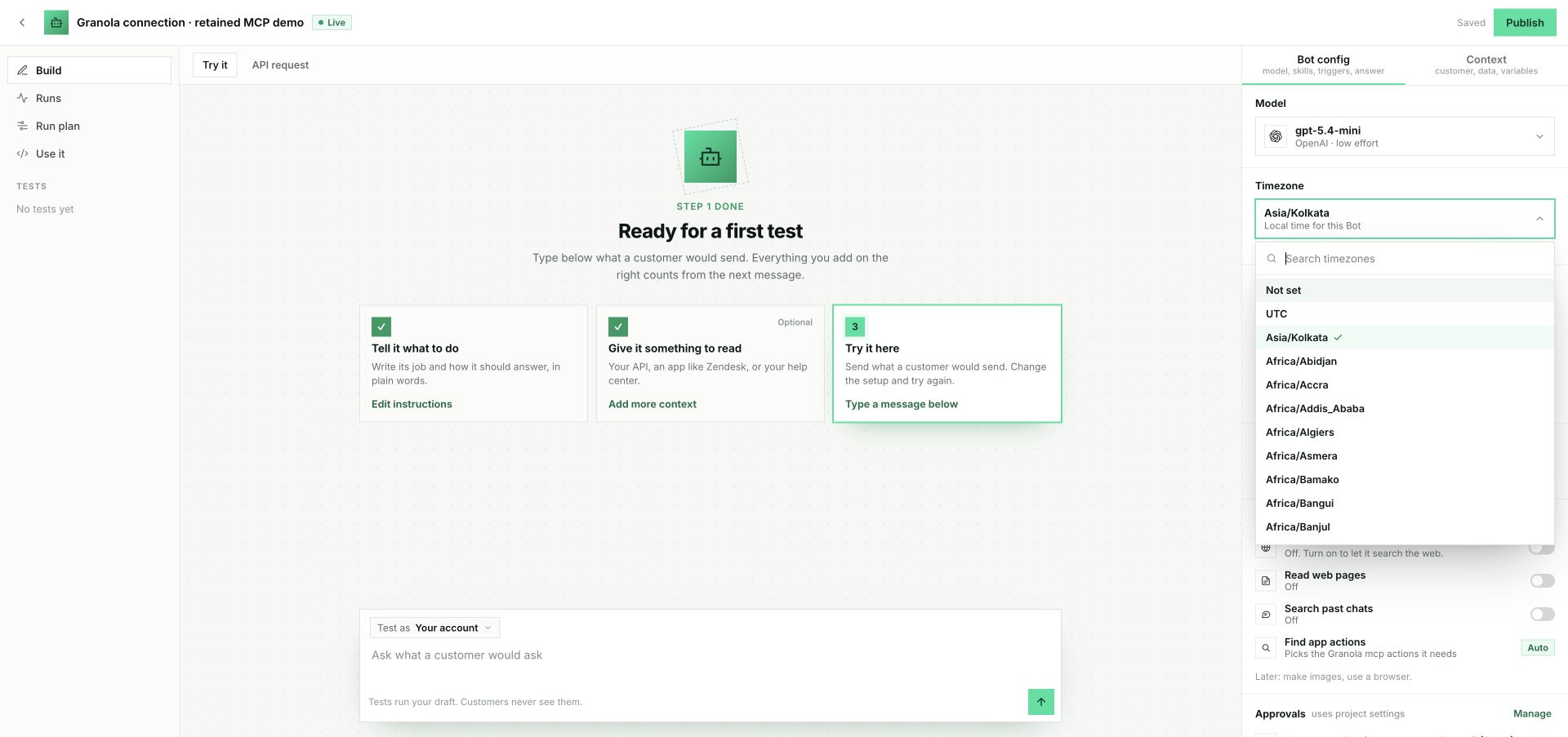
In Bot config → Timezone, choose a named timezone such as Asia/Kolkata.
The published Bot receives the current UTC time and local time in that zone. Leave it
unset when the timezone is unknown. A new schedule defaults to this zone; an existing
schedule keeps its own timezone.
Set the task, language and desired format in the Bot's instructions. Stacklink does not choose prose over a table. A configured JSON schema still validates the final result.
Connect tools and your own API
| Add | Use it for | Configure |
|---|---|---|
| Apps | Read or change data through supported provider tools | Account, available actions and Allow / Ask first / Block |
| Your API | Your product's own operations and customer records | HTTP, GraphQL or OpenAPI; inputs, credentials, read/write effects and response fields |
| MCP servers | Tools from another MCP service | Server, authentication and permitted tools |
For Your API, inputs can come from authenticated identity, application variables, earlier declared outputs or model-collected values. Keep identity bindings locked. Your API must still enforce access to the requested records.
A shared company connection may see many customers' records. Instructions alone do not enforce customer isolation.
| If access is missing | What happens |
|---|---|
| An enabled customer app needs authorization | The run waits and exposes a Connect action |
| A company connection is unavailable | The project owner must repair it |
| The app is disabled or was never added | The run reports that requirement; it cannot enable the app itself |
| An enabled search returns no matches | The model receives an empty result, not a connection request |
The run's requirements field supplies typed setup facts. Use these fields for controls;
do not look for phrases in the model's answer. Adding a capability requires publishing a
new configuration. Connecting an account already allowed by the accepted configuration
can resume the original run. Render the connection action →
Let customers send files
SDK version
Use TypeScript or Python SDK 0.3.14 or later for message attachments.
In the existing Files section, enable only the kinds your Bot needs, then publish. Existing Bots start with Files off.
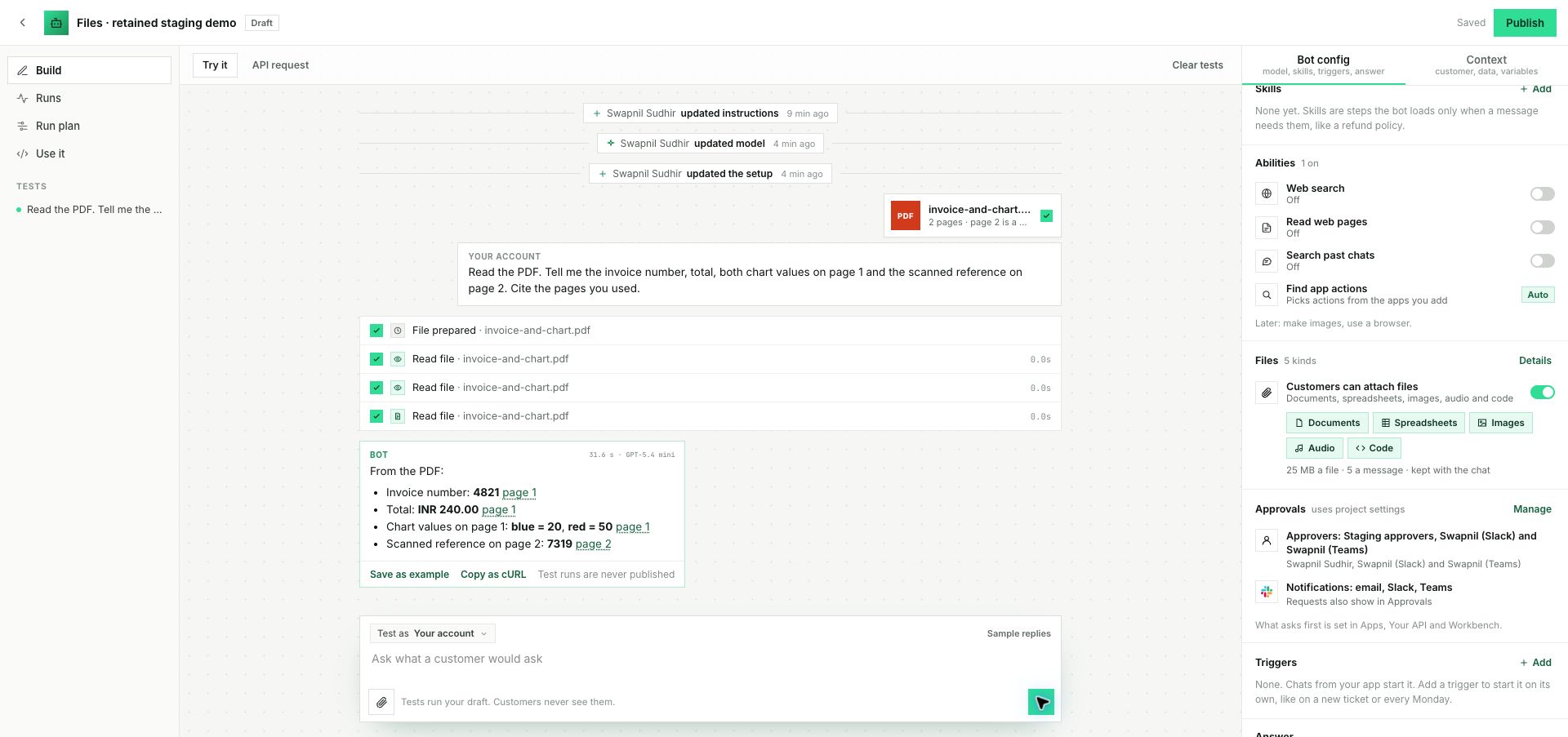
This staging test read the invoice, chart and scanned second page from the uploaded PDF. Each page button opens that file at the cited page where the browser supports it.
| Input | What the Bot can use |
|---|---|
| PDF and documents | Text, pages and slides; a Vision model can inspect scanned pages and charts |
| Excel and CSV | A bounded preview, or the original workbook through permitted Workbench |
| Images, including HEIC | Actual image input to a compatible Vision model; original retained |
| Audio | Scribe v2 transcription, speaker labels and timed references when audio processing is available |
| SQL, Python and other enabled text/code | Read as data; uploading does not authorize execution |
Audio uses ElevenLabs Scribe v2, independently of the Bot's reasoning model. There is no processor selector. Enable Audio in the Bot's existing Files controls when the server reports it available. A recording is validated, queued and transcribed in the background; the original run continues once its transcript is saved. Availability remains off until the deployment's provider account and billing verification are complete.
Speaker labels distinguish voices within that recording; they do not identify people by name. In the dashboard, timed references open the recording at that moment. Where needed, playback uses an MP3 copy while the original remains available. Follow-up questions reuse the saved transcript without another transcription charge. See AI usage and spending limits.
The fixed limits are 25 MiB per file, five files per message and 30 minutes per audio file. Long audio is rejected; it is not sent to Workbench. Use Preview only when the Bot should not analyze an entire workbook. Use Workbench still requires the existing Bot, caller, spending and project approval permissions. Mounting a workbook does not mean every row was read.
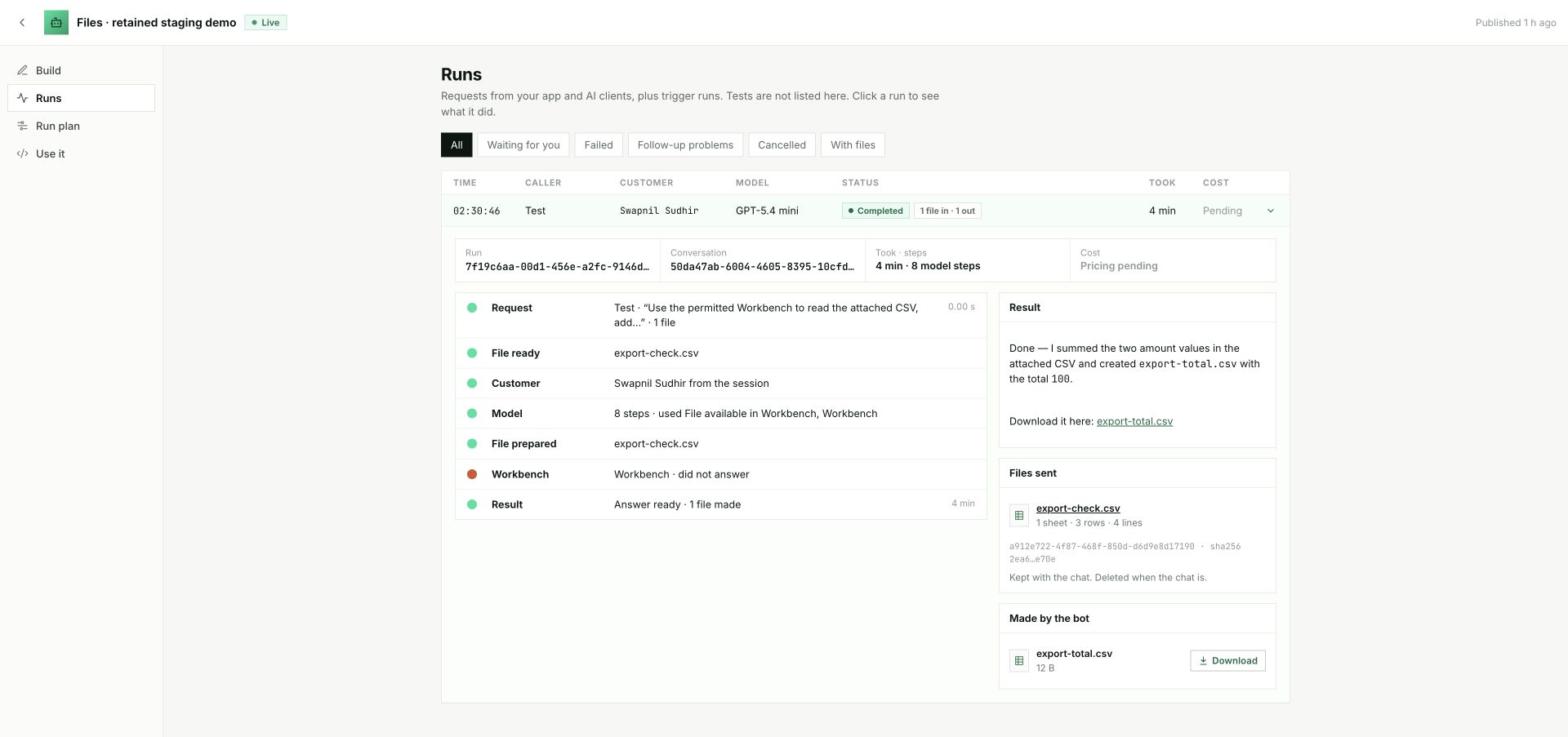
Generated files appear in the thread and Runs → Made by the bot. Download requests a fresh, authorized link to the saved output. In the full-workbook check, Workbench read beyond the preview, summed all 6,500 values and produced a CSV with the verified total of 63,384,750.
Images require a model with Vision. Auto selects a configured compatible model; an explicit text-only model is not silently replaced. A text-only model can read PDF text but cannot inspect its scans or charts.
Files belong to the authenticated customer and conversation. They are not imported into Knowledge. Automatic Memory capture skips a turn that contains attachments. A later text-only turn in that conversation captures only the new user text, without the assistant reply or earlier files. Memory recall retains its existing permissions. Originals, derived representations and conversation-owned outputs follow conversation retention and deletion.
Add knowledge and continuity
| Capability | What it supplies |
|---|---|
| Knowledge | Retrieval from imported pages/files and supported sources; ingestion status and retry |
| Skills | Reusable instructions loaded for the relevant task |
| Memory | Retained facts in the configured customer, company or Bot scope |
| Search past chats | Earlier live conversations for this Bot and authenticated customer |
| Web search / page reading | Public information when those abilities are enabled |
| Workbench | Governed code execution and working files |
Chat history and Memory have separate retention settings. Searching past chats does not require Memory.
Long conversations use automatic context compaction even when Memory is Off. The Bot keeps the original transcript and can retrieve earlier details from its own conversation. Compaction does not combine different customers' histories.
Bot Workbench computation uses the installed environment. External access must use the Bot's permitted helpers. Turning off Web Search also turns off its Workbench helper; raw internet access and arbitrary package installation are not granted to Bot code.
If you enable Memory or Workbench on the Bot, also enable the required capability in the caller's session:
const capableSession = await stacklink.sessions.create({
  tenantId: "demo-company",
  userId: "demo-user",
  memory: {
    enabled: true,
    agentExternalId: botId,
    readableSubjects: ["session_user", "session_agent"],
    writableSubjects: ["session_user", "session_agent"],
  },
  workbench: { enable: true },
});
capable_session = stacklink.sessions.create_bound({
"externalTenantId": "demo-company",
"externalUserId": "demo-user",
"memory": {
"enabled": True,
"agentExternalId": bot_id,
"readableSubjects": ["session_user", "session_agent"],
"writableSubjects": ["session_user", "session_agent"],
},
"workbench": {"enable": True},
})These snippets continue the SDK setup and keep the default Ask first policy. Use the returned session for the run. Calling tools requires tools:execute; Memory uses its own memory:read and memory:write permissions. Enable only the capabilities and scopes your application needs.
Choose the result
| Setting | What your application receives |
|---|---|
| Text | Answer text; stream deltas or read finalText |
| JSON | A server-validated final object in output |
| Webhook | A signed callback to the Bot's saved endpoint |
Choose JSON and declare the output fields in the builder before publishing. Progress can stream while JSON is produced; consume the validated final object rather than treating partial text as valid JSON.
// After a run of a Bot published with JSON output:
const completed = await stacklink.bots.wait(botId, run.id);
if (completed.status === "completed") {
  console.log(completed.output);
}
# After a run of a Bot published with JSON output:
completed = stacklink.bots.wait(bot_id, run["id"])
if completed["status"] == "completed":
print(completed["output"])Start work automatically
Bots can start from a configured app event, a signed incoming webhook, or a one-time/recurring schedule. Configure these in the builder and publish them.
A trigger starts a run with its event context. It does not yet match an event to an outstanding customer question. Schedules start work; they are not unanswered-question reminders.
Follow the run and its delivery →
Try safely, then publish
Sample tests avoid live external calls. Live tests use the configured real accounts and permissions. Publishing accepts your current revision; editing the draft afterwards leaves that publication unchanged.
Slack and Teams
Publish the same Bot with its own Slack and Teams identity, such as @SalesAssistant. Each platform gets a customer-owned registration. SDK/API and MCP publishing remain independent.
- Set its name, icon and public description in New Bot or the pencil beside its name. Publish the configuration used for live conversations.
- Open Publish or Use it → Team apps, then select Slack or Teams. Start or resume that Bot’s app setup.
- Select the features it needs. The setup shows their required provider permissions; enabling chat does not add provider tools to the Bot.
- For Slack, open the prefilled app creation flow, upload its icon in Slack, and save its app credentials privately in Stacklink. Retry Slack’s Request URL verification and check that Stacklink received the signed challenge. Then authorize its installation.
- For Teams, register its messaging identity in your Microsoft tenant, save its Bot ID, registration home tenant and secret privately, and configure the displayed Web redirect URI for its Microsoft connection. Tenant to connect selects the organization that will install it; this does not change the registration's home tenant. Authorize only the listed delegated permissions, download its package, and install it in Teams. A package download is not an installation. Open in Teams appears when the server has a link for the selected installation.
- Choose selected channels, or explicitly choose Channels where it’s added. Pick all internal members or selected people, and optionally enable private messages. A workspace installation alone does not add the Bot to every channel.
- Review shared Knowledge/company resources and activate after the server confirms installation and access. Feature changes disable affected deployments until they are checked and activated again. The setup evaluates the selected installation, not whether this app is installed somewhere else.
The name and public description reach the Bot’s model context. The public description stays separate from private instructions. Changing the draft does not republish an accepted configuration or automatically change external branding: update the Slack app or Teams package, then check its appearance.
Owner reviewed records your explicit check of the icon and description for that workspace or tenant after the server checks the native name. It does not mean Stacklink synchronized or independently verified those assets. An identity change requires another review. The people picker searches loaded members; use Load more people to continue through the provider's pages. Previously selected people remain selected while other pages load.
For Slack credential replacement, Stacklink keeps its existing stored credentials active while it stages the replacement. Verify the Request URL with the new signing secret, then complete OAuth for that exact app. Only successful verification promotes the replacement. Teams checks a submitted replacement secret before saving it. Neither flow changes the Bot's action rules or automatically requests additional scopes. If credentials were revoked at the provider, retaining their local version cannot make them work again.
| Destination | Conversation behavior |
|---|---|
| Slack internal public/private channel | Mention the installed Bot in an approved channel where it is a member. Replies stay in that thread. |
| Teams standard channel | Mention the installed Bot in an approved standard channel. Private/shared channels are unavailable in this preview. |
| Private messages | Enable DMs/personal chats in the deployment. Each person has a separate conversation. |
| Another channel or thread | Uses the same published Bot configuration, with separate conversation history. |
Channel follow-ups require another mention. Two teammates can continue the same thread, with each message retaining its sender. Channel membership does not grant company approval authority or access to another person’s connections. Personal setup continues privately; private authorization links are never posted to shared threads.
The audience can use the Bot’s explicitly shared Knowledge and permitted company resources. Shared threads do not read customer Memory or write their conversation into company/Bot Memory. Earlier thread history requires the platform’s separate history permission and may be incomplete.
One turn runs at a time in a thread. Up to ten follow-ups can queue in order; further messages receive a queue-full notice. A failed or stopped predecessor holds later turns for explicit Send or Cancel in Runs. An eligible sender can also cancel their own queued message using its native Slack/Teams action.
Disable one deployment to stop that destination without pausing SDK/MCP or uninstalling its provider app. Removing a channel also prevents subsequent replies there. Republishing requires reviewing the deployment against the new configuration.
Dedicated apps use the existing approval flow and linked-approver checks. A teammate who can talk to the Bot cannot approve a company action unless the existing approval policy authorizes them. Deleting a Bot removes only its own Stacklink installation records; it does not delete a customer-owned external app registration.
Staging acceptance boundary
Dedicated SalesAssistant channel conversations have passed in the staging Slack and Teams installations, including thread continuity, long messages and native tables. Slack ordered follow-ups, Stop and sender cancellation have also passed. Multi-person and multi-Bot journeys, DMs, native files/approvals, credential lifecycle and additional-workspace/tenant onboarding remain separate acceptance gates. A connected account alone does not mean the Bot is installed or ready.
Attach workflows and extend schedules
Use the Workflows section in the Bot builder. Attach a published workflow version that the Bot may call as a tool. The workflow uses the Bot's allowed apps, API versions, Workbench languages and caller access; attaching it does not grant additional permissions. A workflow can also call a Bot at an explicit step. A new run captures the permitted live setup; accepted runs retain it. See Workflows.
Bot schedules add every 5, 10, 15 or 30 minutes, monthly (including the last day), and five-field cron with timezone and a next-run preview. Daily, hourly, weekdays and one-time schedules remain supported. Bot schedules still combine missed slots and skip overlaps. Workflows queue accepted runs when capacity is full. A Bot schedule continues to select at most one customer; concurrency limits are not customer fan-out.